
Cara Memasang Matomo Web Analytics Dengan Apache Di FreeBSD 14
Analitik web adalah sistem untuk mengumpulkan dan menganalisis data. Sistem ini sangat membantu Anda memahami perilaku pengguna di situs serta melacak interaksi mereka dengan artikel atau produk yang Anda pasarkan.
Berdasarkan hasil analisis data, menjadi jelas bagaimana cara menyempurnakan produk atau memperbaiki tahapan interaksi tertentu dengan klien.
Sebagai contoh, sebuah toko online meluncurkan iklan kontekstual di jejaring sosial dan menghabiskan anggaran besar, namun angka penjualan tetap tidak meningkat. Berkat bantuan analitik web, kami menemukan bahwa pelanggan hanya memasukkan produk ke dalam keranjang belanja lalu meninggalkan situs tersebut.
Hal ini bisa jadi menandakan bahwa Anda perlu membenahi formulir pemesanan: buatlah formulir tersebut lebih ringkas dan jelas agar pelanggan dapat mengisi seluruh kolomnya dalam waktu beberapa menit saja.
Analitik web diperlukan bagi para spesialis yang menganalisis data, menciptakan produk, mempromosikannya secara daring, serta mengelola proses yang dihasilkan oleh analitik web tersebut. Penerapan analitik web berbeda-beda di setiap profesi dan pengguna atau pemilik situs.
Matomo, yang sebelumnya dikenal sebagai Piwik, adalah perangkat lunak analitik web gratis dan sumber terbuka (open source) yang mampu melacak kunjungan situs web serta menampilkan laporan data dan analisis mengenai jumlah pengunjung.
Matomo dikembangkan menggunakan bahasa pemrograman PHP dan dilisensikan di bawah GPL. Perangkat lunak ini dapat beroperasi menggunakan server basis data MySQL atau MariaDB.
Matomo memiliki kemampuan yang luar biasa dalam menyajikan laporan untuk melacak aktivitas pengguna di situs web Anda. Laporan tersebut mencakup informasi mengenai mesin pencari dan kata kunci perujuk, bahasa, kunjungan halaman, akses berkas, unduhan, dan banyak lagi.
Berkat kemampuannya tersebut, Matomo semakin populer dan bahkan bisa dikatakan hampir setara dengan Google Analytics dalam hal pelacakan pengunjung situs web.
1. System Requirements
- OS: FreeBSD 14.5-PRERELEASE
- IP address: 2001:470:36:61c:4000::2000
- IP address: 192.168.17.3
- Hostname: mail
- CPU: Intel i3-6100 (4) @ 3.700GHz
- Memory: 811MiB / 3752MiB
- Web server: apache24
- Matomo version: Matomo 5.11.2
- PHP version: PHP84
- PHP-FPM
- Dependencies: php84 mod_php84 php84-ctype php84-curl php84-dom php84-fileinfo php84-filter php84-gd php84-iconv php84-intl php84-mbstring php84-mysqli php84-opcache php84-pdo php84-pdo_mysql php84-posix php84-readline php84-session php84-simplexml php84-soap php84-sockets php84-sqlite3 php84-tidy php84-tokenizer php84-xml php84-zlib php84-pdo_mysql php84-pecl-mcrypt php84-pecl-memcache php84-pecl-memcached
2. Membuat Database MySQL / MariaDB
Matomo hanya dapat dijalankan dengan menggunakan MySQL atau MariaDB sebagai basis data backend. Saat artikel ini ditulis, Matomo memerlukan setidaknya MySQL Server v8 atau MariaDB v10.x.
Dalam artikel ini, kita akan menginstal dan menggunakan MariaDB Server sebagai basis data untuk Matomo Web Analytics. Kita asumsikan bahwa MariaDB Server sudah terinstal di server FreeBSD Anda, sehingga kita tinggal membuat basis data Matomo.
Sebelum membuat database untuk Matomo, Masuk ke basis data Server MySQL/MariaDB.
root@ns3:~ # mysql -u root -p

Enter password: router123
Welcome to the MySQL monitor.  Commands end with ; or \g.
Your MySQL connection id is 11
Server version: 8.0.35 Source distribution

Copyright (c) 2000, 2023, Oracle and/or its affiliates.

Oracle is a registered trademark of Oracle Corporation and/or its
affiliates. Other names may be trademarks of their respective
owners.

Type 'help;' or '\h' for help. Type '\c' to clear the current input statement.

root@localhost [(none)]>
Setelah Anda berhasil masuk ke server basis data MySQL, buatlah basis data bernama matomo.
root@localhost [(none)]> CREATE DATABASE matomo;
Query OK, 1 row affected (0.04 sec)

root@localhost [(none)]> CREATE USER 'usermatomo'@'localhost' IDENTIFIED BY 'router1234';
Query OK, 0 rows affected (0.04 sec)

root@localhost [(none)]> GRANT ALL PRIVILEGES ON matomo.* TO 'usermatomo'@'localhost';
Query OK, 0 rows affected (0.03 sec)

root@localhost [(none)]> FLUSH PRIVILEGES;
Query OK, 0 rows affected (0.02 sec)

root@localhost [(none)]>
3. Install Matomo
Matomo Analysis adalah aplikasi yang dikembangkan menggunakan PHP, sehingga memerlukan dependensi PHP. Jika Anda tidak menginstal dependensi PHP yang diperlukan, Matomo tidak akan dapat berjalan pada server FreeBSD. Terdapat banyak dependensi yang harus diinstal, dan semuanya saling melengkapi satu sama lain.
Matomo memberi Anda tampilan halaman, sasaran, kampanye, dan pelaporan e-niaga tanpa menyerahkan data tersebut ke penyedia analitik pihak ketiga. Anda dapat menginstal Matomo di Ubuntu/FreeBSD dengan Nginx, Apache24, MariaDB, dan PHP-FPM, lalu selesaikan penginstal browser di domain Anda sendiri atau di host pribadi sebelum memaparkannya ke internet.
Selain itu, Matomo juga beroperasi menggunakan basis data MySQL atau MariaDB. Oleh karena itu, sangat penting untuk menyiapkan dependensi yang menghubungkan Matomo dengan basis data tersebut. Dependensi PHP yang diperlukan untuk komunikasi dengan server basis data meliputi php84-mysqli, php84-pdo, dan php84-pdo_mysql.
a. Mengaktifkan Modul PHP
Seperti yang telah diuraikan pada bagian atas, dependensi PHP memegang peran penting, jadi sangat wajar jika langkah pertama yang harus anda kerjakan adalah menginstal modul PHP, agar terhubung dengan web server Apache24.
Kita asumsikan anda telah menginstal Apache24 di sistem FreeBSD, jadi kita langsung saja mengaktifkan modul PHP untuk Apache24.
Jalankan perintah di bawah ini untuk menginstall modul PHP.
root@mail:~ # pkg install php84 mod_php84
Artikel lengkap tentang menginstal modul PHP tersebut telah saya tulis sebelumnya, anda bisa langsung membacanya.
b. Menginstall Dependensi/Library Untuk Matomo
Jangan sampai dependensi PHP ini terlewatkan, install saja semuanya seperti contoh berikut ini.
root@mail:~ # pkg install php84-ctype php84-curl php84-dom php84-fileinfo php84-filter php84-gd php84-iconv php84-intl php84-mbstring php84-mysqli php84-opcache php84-pdo php84-pdo_mysql php84-posix php84-readline php84-session php84-simplexml php84-soap php84-sockets php84-sqlite3 php84-tidy php84-tokenizer php84-xml php84-zlib php84-pdo_mysql php84-pecl-mcrypt php84-pecl-memcache php84-pecl-memcached
Setelah semua dependensi di atas terinstal pada server FreeBSD, jalankan perintah berikut untuk menginstal Matomo.
Agar semua dependensi PHP di atas, dapat langsung terhubung dengan Apache, kami sarankan install juga paket pcre. Karena Apache membutuhkan pcre sebagai library utamanya.
root@mail:~ # cd /usr/ports/devel/pcre
root@mail:/usr/ports/devel/pcre # make install clean
Setelah semua dependensi di atas terinstal pada server FreeBSD, jalankan perintah berikut untuk menginstal Matomo.
root@ns3:~ # cd /usr/ports/www/matomo
root@ns3:/usr/ports/www/matomo # make config
root@ns3:/usr/ports/www/matomo # make install clean
4. Mengkonfigurasi Matomo
Sebenarnya Matomo tidak memiliki file konfigurasi karena berjalan pada server web Apache. Jadi, yang perlu Anda konfigurasi adalah server Apache. Buka file /usr/local/etc/apache24/extra/httpd-ssl.conf, lalu tambahkan skrip di bawah ini pada bagian akhir file tersebut.
#####
Listen 443
SSLCipherSuite HIGH:MEDIUM:!MD5:!RC4:!3DES
SSLProxyCipherSuite HIGH:MEDIUM:!MD5:!RC4:!3DES
SSLHonorCipherOrder on

SSLProtocol all -SSLv3
SSLProxyProtocol all -SSLv3
SSLPassPhraseDialog  builtin
SSLSessionCache        "shmcb:/var/run/ssl_scache(512000)"
SSLSessionCacheTimeout  300

SSLUseStapling On
SSLStaplingCache "shmcb:/var/run/ssl_stapling(32768)"
SSLStaplingStandardCacheTimeout 3600
SSLStaplingErrorCacheTimeout 600

<VirtualHost [2001:470:36:61c:4000::2000]:443>
DocumentRoot "/usr/local/www/apache24/data"
ServerName mail.unixbsdshell.site:443
ServerAdmin datainchi@gmail.com
ErrorLog "/var/log/httpd-error.log"
TransferLog "/var/log/httpd-access.log"

SSLEngine on
SSLCertificateFile "/usr/local/etc/letsencrypt/live/unixbsdshell.site/cert.pem"
SSLCertificateKeyFile "/usr/local/etc/letsencrypt/live/unixbsdshell.site/privkey.pem"
SSLCertificateChainFile  "/usr/local/etc/letsencrypt/live/unixbsdshell.site/chain.pem"
SSLCACertificatePath "/usr/local/etc/letsencrypt/live/unixbsdshell.site/"
SSLOpenSSLConfCmd DHParameters "/usr/local/etc/letsencrypt/live/unixbsdshell.site/dhparams.pem"

<FilesMatch "\.(cgi|shtml|phtml|php)$">
    SSLOptions +StdEnvVars
</FilesMatch>
<Directory "/usr/local/www/apache24/cgi-bin">
    SSLOptions +StdEnvVars
</Directory>

BrowserMatch "MSIE [2-5]" \
         nokeepalive ssl-unclean-shutdown \
         downgrade-1.0 force-response-1.0
CustomLog "/var/log/httpd-ssl_request.log" \
          "%t %h %{SSL_PROTOCOL}x %{SSL_CIPHER}x \"%r\" %b"
</VirtualHost>

AddType application/x-httpd-php .php
AddType application/x-httpd-php .php .phtml .php3
AddType application/x-httpd-php-source .phps

   Alias /matomo /usr/local/www/matomo
   AcceptPathInfo On
   <Directory /usr/local/www/matomo>
     DirectoryIndex index.php
     Options FollowSymLinks
     AllowOverride All
     <IfVersion < 2.4>
        Order allow,deny
        Allow from all
     </IfVersion>
     <IfVersion >= 2.4>
       Require all granted
     </IfVersion>
   </Directory>
Pada file /usr/local/etc/apache24/extra/httpd-vhosts.conf, ketikkan skrip berikut ini.
<VirtualHost [2001:470:36:61c:4000::2000]:80>
    ServerAdmin datainchi@gmail.com
    DocumentRoot "/usr/local/www/apache24/data"
    ServerName mail.unixbsdshell.site
    ServerAlias mail.unixbsdshell.site
    ErrorLog "/var/log/dummy-host.example.com-error_log"
    CustomLog "/var/log/dummy-host.example.com-access_log" common
</VirtualHost>
Sedangkan untuk file /usr/local/etc/apache24/httpd.conf, ketikkan skrip di bawah ini.
####
ServerRoot "/usr/local"
Listen 80

#LoadModule mpm_event_module libexec/apache24/mod_mpm_event.so
LoadModule mpm_prefork_module libexec/apache24/mod_mpm_prefork.so
#LoadModule mpm_worker_module libexec/apache24/mod_mpm_worker.so
LoadModule authn_file_module libexec/apache24/mod_authn_file.so
LoadModule authn_core_module libexec/apache24/mod_authn_core.so
LoadModule authz_host_module libexec/apache24/mod_authz_host.so
LoadModule authz_groupfile_module libexec/apache24/mod_authz_groupfile.so
LoadModule authz_user_module libexec/apache24/mod_authz_user.so
LoadModule authz_core_module libexec/apache24/mod_authz_core.so
LoadModule access_compat_module libexec/apache24/mod_access_compat.so
LoadModule auth_basic_module libexec/apache24/mod_auth_basic.so
LoadModule socache_shmcb_module libexec/apache24/mod_socache_shmcb.so
LoadModule reqtimeout_module libexec/apache24/mod_reqtimeout.so
#LoadModule request_module libexec/apache24/mod_request.so
#LoadModule include_module libexec/apache24/mod_include.so
LoadModule filter_module libexec/apache24/mod_filter.so
LoadModule mime_module libexec/apache24/mod_mime.so
LoadModule log_config_module libexec/apache24/mod_log_config.so
LoadModule env_module libexec/apache24/mod_env.so
LoadModule headers_module libexec/apache24/mod_headers.so
LoadModule setenvif_module libexec/apache24/mod_setenvif.so
LoadModule version_module libexec/apache24/mod_version.so
LoadModule proxy_module libexec/apache24/mod_proxy.so
LoadModule proxy_http_module libexec/apache24/mod_proxy_http.so
LoadModule proxy_fcgi_module libexec/apache24/mod_proxy_fcgi.so
LoadModule proxy_scgi_module libexec/apache24/mod_proxy_scgi.so
LoadModule ssl_module libexec/apache24/mod_ssl.so
LoadModule unixd_module libexec/apache24/mod_unixd.so
LoadModule status_module libexec/apache24/mod_status.so
LoadModule autoindex_module libexec/apache24/mod_autoindex.so
#LoadModule asis_module libexec/apache24/mod_asis.so
#LoadModule info_module libexec/apache24/mod_info.so

<IfModule !mpm_prefork_module>
	#LoadModule cgid_module libexec/apache24/mod_cgid.so
</IfModule>
<IfModule mpm_prefork_module>
	#LoadModule cgi_module libexec/apache24/mod_cgi.so
</IfModule>
LoadModule vhost_alias_module libexec/apache24/mod_vhost_alias.so
LoadModule dir_module libexec/apache24/mod_dir.so
LoadModule alias_module libexec/apache24/mod_alias.so
LoadModule rewrite_module libexec/apache24/mod_rewrite.so
LoadModule php_module         libexec/apache24/libphp.so


IncludeOptional etc/apache24/modules.d/[0-9][0-9][0-9]_*.conf

<IfModule unixd_module>
User www
Group www
</IfModule>

ServerAdmin datainchi@gmail.com
######ServerName www.example.com:80

<Directory />
    AllowOverride none
    Require all denied
</Directory>

##### DocumentRoot "/usr/local/www/apache24/data"
<Directory "/usr/local/www/apache24/data">
    Options Indexes FollowSymLinks
    AllowOverride None
    Require all granted
</Directory>

<IfModule dir_module>
    DirectoryIndex index.html
##    DirectoryIndex index.php index.html
</IfModule>

<Files ".ht*">
    Require all denied
</Files>

ErrorLog "/var/log/httpd-error.log"
LogLevel warn

<IfModule log_config_module>
    LogFormat "%h %l %u %t \"%r\" %>s %b \"%{Referer}i\" \"%{User-Agent}i\"" combined
    LogFormat "%h %l %u %t \"%r\" %>s %b" common
    	<IfModule logio_module>
      	   LogFormat "%h %l %u %t \"%r\" %>s %b \"%{Referer}i\" \"%{User-Agent}i\" %I %O" combinedio
    	</IfModule>
    CustomLog "/var/log/httpd-access.log" common
</IfModule>

<IfModule alias_module>
    ScriptAlias /cgi-bin/ "/usr/local/www/apache24/cgi-bin/"
</IfModule>

<IfModule cgid_module>
    #Scriptsock cgisock
</IfModule>

<Directory "/usr/local/www/apache24/cgi-bin">
    AllowOverride None
    Options None
    Require all granted
</Directory>

<IfModule headers_module>
    RequestHeader unset Proxy early
</IfModule>

<IfModule mime_module>
    TypesConfig etc/apache24/mime.types
    AddType application/x-compress .Z
    AddType application/x-gzip .gz .tgz
</IfModule>

Include etc/apache24/extra/httpd-vhosts.conf

<IfModule proxy_html_module>
Include etc/apache24/extra/proxy-html.conf
</IfModule>

Include etc/apache24/extra/httpd-ssl.conf

<IfModule ssl_module>
SSLRandomSeed startup builtin
SSLRandomSeed connect builtin
</IfModule>

Include etc/apache24/Includes/*.conf
Jangan lupa, Anda harus mengaktifkan PHP-FPM. Dalam artikel ini, kami mengasumsikan bahwa PHP-FPM telah terinstal di server FreeBSD anda, sehingga kami tidak akan membahas PHP-FPM.
Setelah itu pada file /usr/local/etc/apache24/Includes/php-fpm.conf, anda ketikkan juga skrip seperti di bawah ini.
<IfModule proxy_fcgi_module>
   <IfModule dir_module>
       DirectoryIndex index.php
   </IfModule>
   <FilesMatch "\.(php|phtml|inc)$">
       SetHandler "proxy:fcgi://192.168.17.3:9000"
   </FilesMatch>
</IfModule>
Semua file hasil instalasi Matomo disimpan di direktori /usr/local/www/matomo. Atur kepemilikan dan izin akses untuk direktori tersebut.
root@ns3:~ # chown -R www:www /usr/local/www/matomo
root@ns3:~ # chmod -R 775 /usr/local/www/matomo
Untuk mempersiapkan menjalankan Matomo, Anda memulai ulang/restart server Apache.
root@ns3:~ # service apache24 restart
Matomo Web Analytics dijalankan melalui peramban web, bukalah peramban web Google Chrome dan ketik https://[2001:470:36:61c:4000::2000]/matomo/.
Jika tidak ada langkah yang terlewat dalam konfigurasi di atas, tampilannya seharusnya seperti gambar di bawah ini.
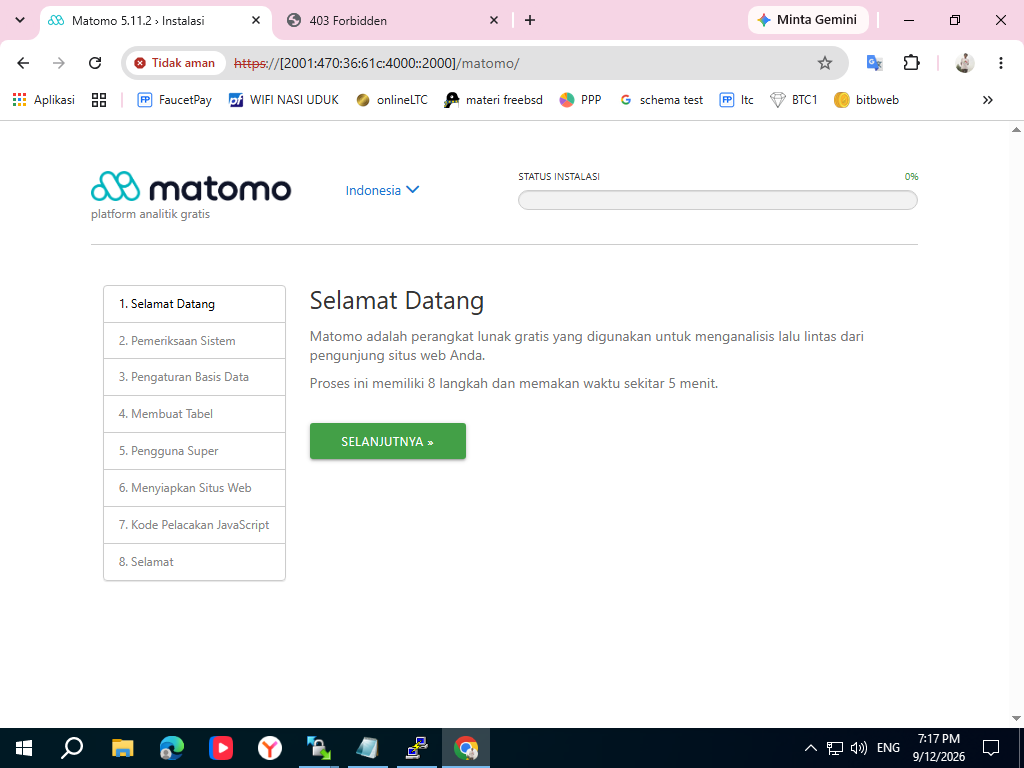
Klik Selanjutnya untuk memulai instalasi dan proses sinkronisasi database.
Matomo akan mulai melakukan instalasi dan memeriksa lingkungan server untuk proses tersebut. Pastikan semua persyaratan dan pengaturan ditandai dengan warna hijau, seperti pada gambar di bawah ini.
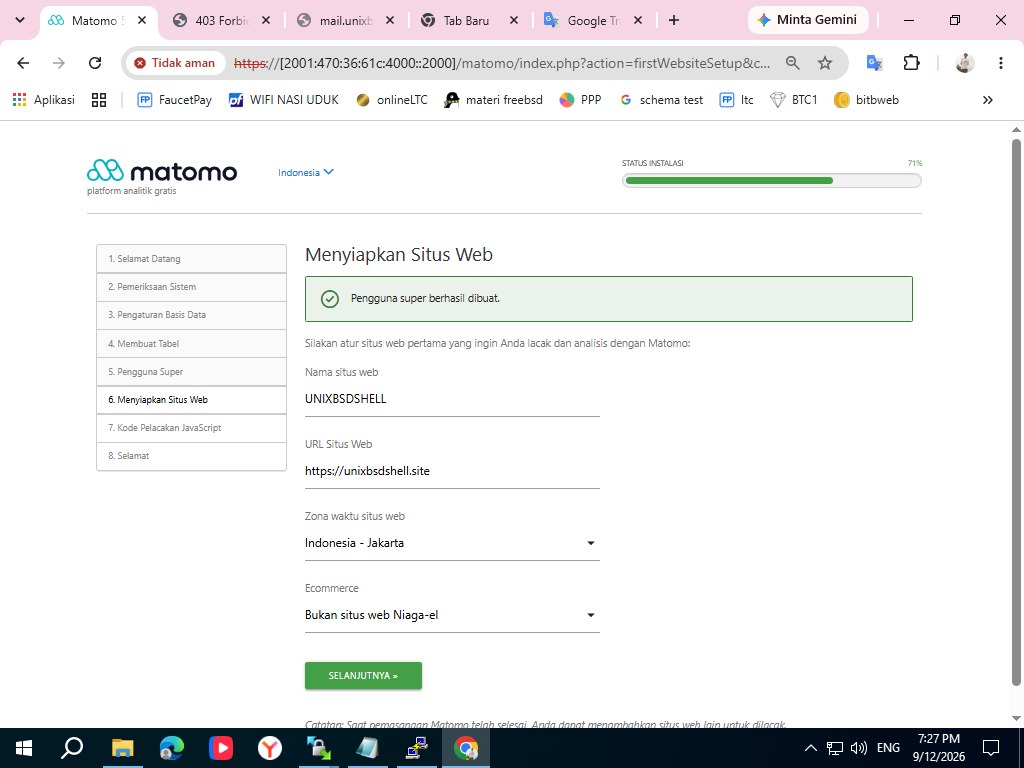
Masukkan detail database MySQL Server untuk analitik web Matomo Anda. Pastikan Anda telah memasukkan nama pengguna dan kata sandi database yang benar. Kemudian, klik Selanjutnya lagi.
Setelah Anda berhasil mengisi semuanya, Anda akan diarahkan ke dasbor utama Matomo.
Selamat, Anda telah berhasil menyelesaikan instalasi Matomo Web Analytics di server FreeBSD. Dengan terinstalnya Matomo di server FreeBSD pribadi, Anda dapat menambahkan situs lain dan mulai melacaknya menggunakan Matomo Web Analytics.